Your bithost account holds a balance and controls live servers. Two-factor authentication (2FA) adds a second layer - even with your password, an attacker still can’t log in without your phone.
What is 2FA?
Two-factor authentication means you need two things to log in: something you know (your password) and something you have (your phone). After enabling 2FA, every login will ask for a 6-digit code generated by an authenticator app on your device. The code changes every 30 seconds and is never sent over the network, so it can’t be intercepted or phished.
This is especially important for a bithost account because top-ups are in crypto - there is no chargeback if funds are misused.
Step 1 - Get an authenticator app
You need an authenticator app on your phone before you start. Any TOTP-compatible app works. Popular options:
- Google Authenticator - simple, widely used, available on iOS and Android
- Authy - adds encrypted cloud backup, useful if you switch phones often
- 1Password or Bitwarden - good if you already use a password manager with built-in 2FA support
Install one of these on your phone before continuing. You won’t need it until Step 3.
Step 2 - Open account settings
Log in to your bithost dashboard and click Account in the top navigation, then select Profile. Scroll down to the Security section and click Enable 2FA.
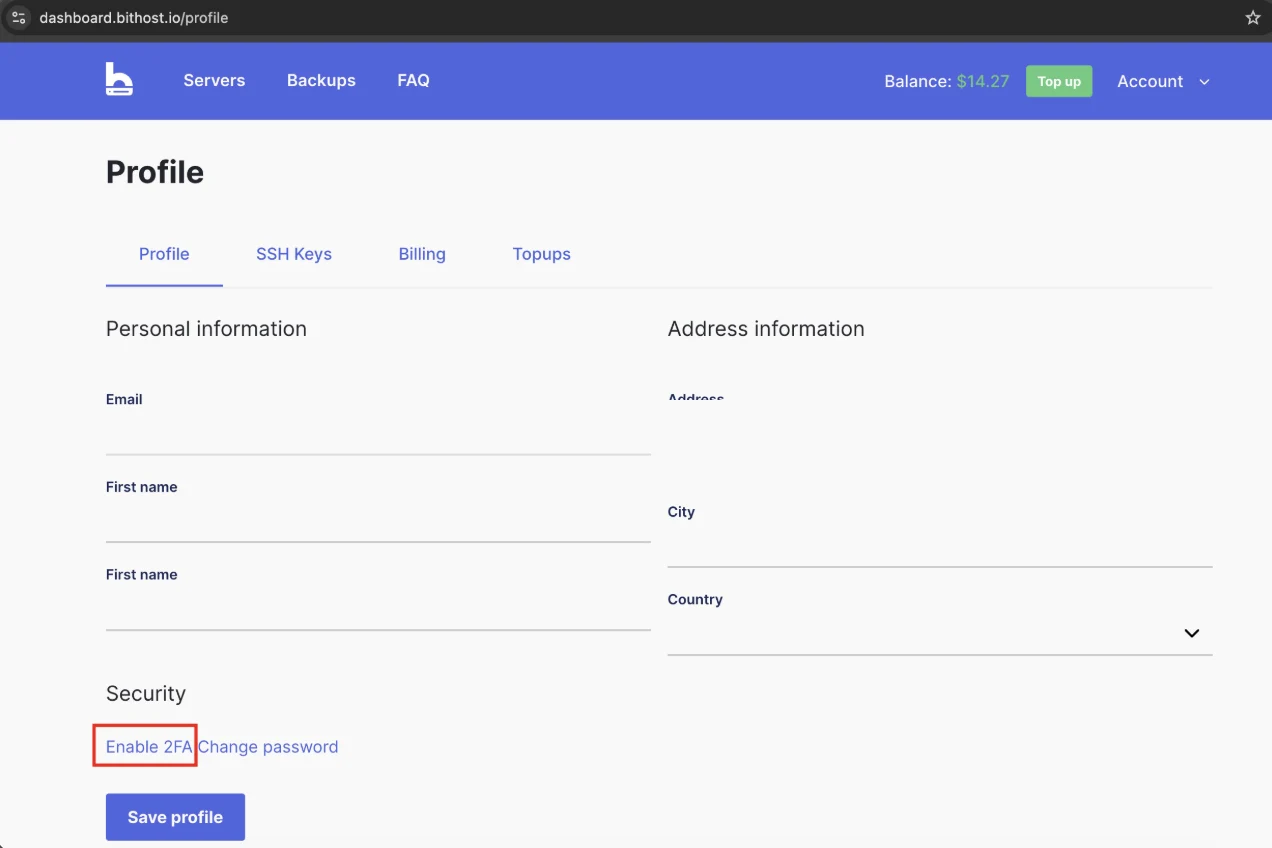
You’ll see two links in the Security section - Enable 2FA and Change password. Click Enable 2FA to open the setup dialog.
Step 3 - Scan the QR code
A dialog will appear showing a QR code and a code input field. Open your authenticator app, tap the + or Add account button, and choose Scan QR code. Point your phone camera at the QR code on screen.
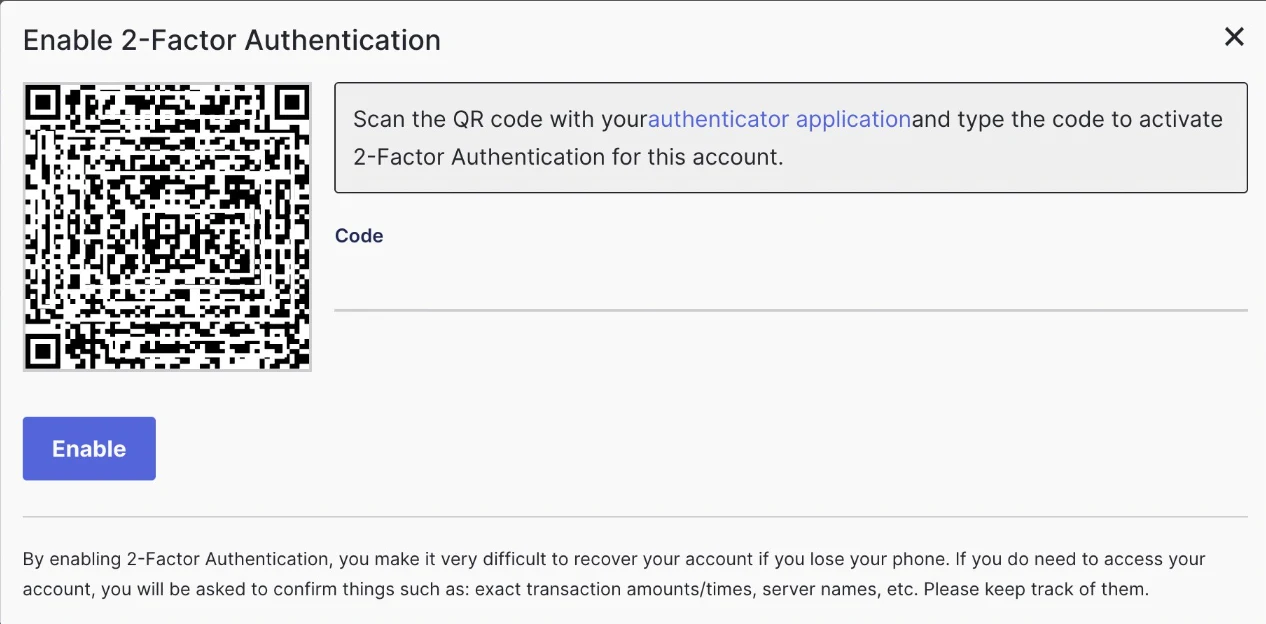
Your authenticator app will add a bithost entry and immediately start showing a 6-digit code that refreshes every 30 seconds. If your phone camera can’t scan the QR code, most apps also offer a manual entry option
- the QR code encodes a plain text secret you can type in instead.
Step 4 - Confirm and save
Type the 6-digit code currently shown in your authenticator app into the Code field in the dialog, then click Enable. Make sure to use the code before it expires - if the timer is about to run out, wait for the next one.
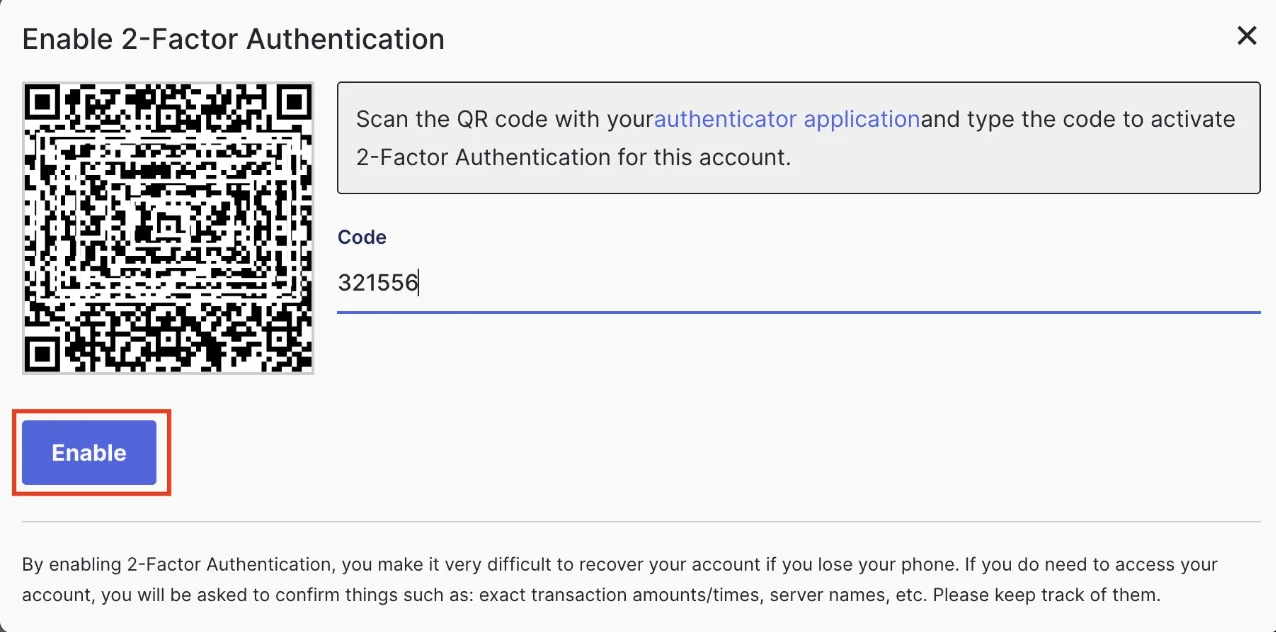
Once confirmed, 2FA is active. From now on, every login will require your password and a fresh code from your authenticator app.
Important: If you lose access to your phone, account recovery requires verifying your identity through support. bithost may ask for exact transaction amounts, server names, or top-up dates to confirm ownership. Keep a record of those details somewhere safe.
Questions? Email us at [email protected] - we reply in under 2 hours, 7 days a week.