Backups are your safety net. This guide covers how to set up backups for your VPS so you can recover quickly from accidental deletion, data corruption, or a security incident.
Backup Strategy: The 3-2-1 Rule
- 3 copies of your data
- 2 different storage media/locations
- 1 offsite backup
At minimum: enable provider snapshots and back up critical files to an external location.
Option 1: bithost Backups and Snapshots (Easiest)
You don’t need the command line for full-server recovery. Every bithost server has a Backups tab with two built-in options: scheduled automatic backups and on-demand snapshots. Open your server from the Servers list and click the Backups tab.
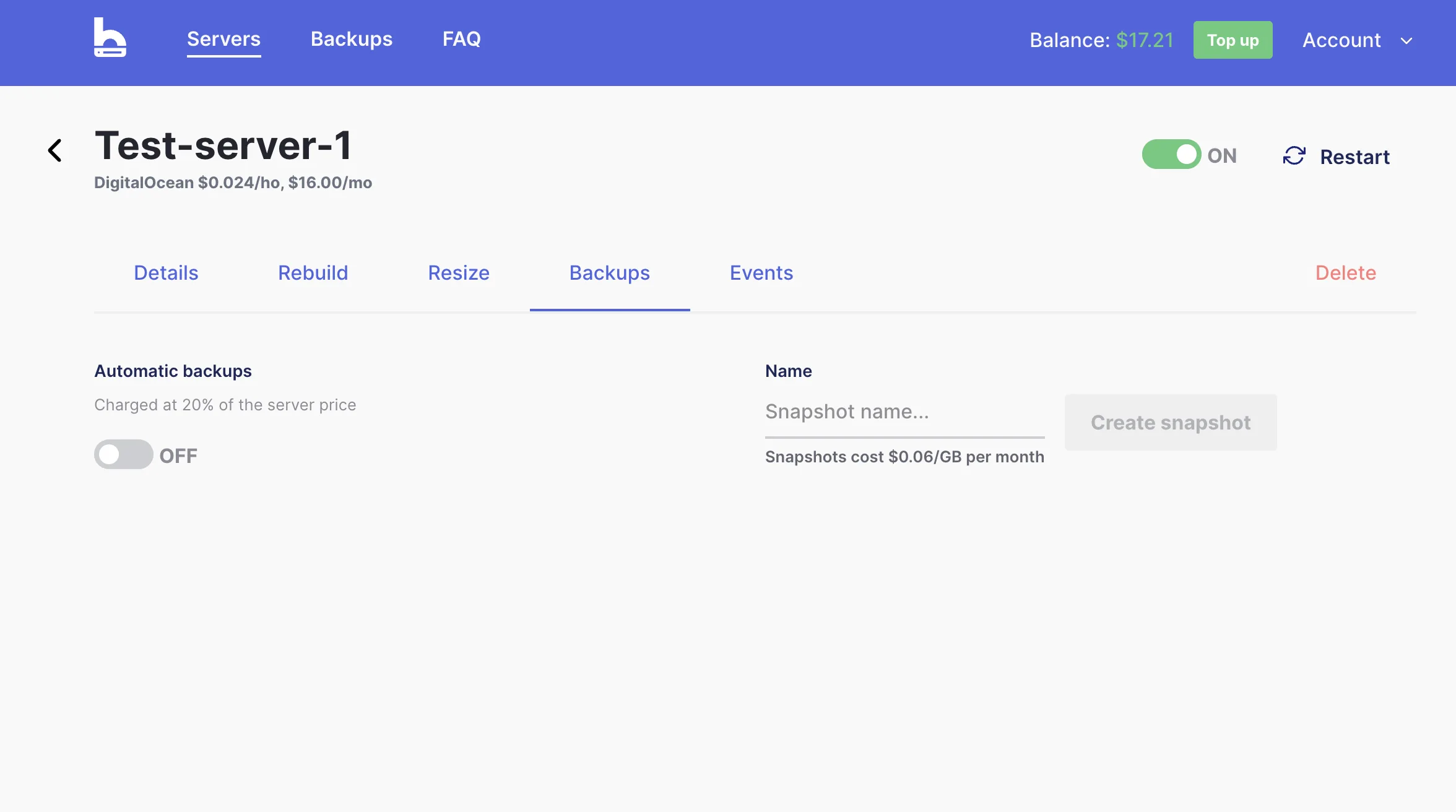
Automatic backups
Toggle Automatic backups on to have the underlying provider take scheduled full-server backups for you. This is the closest thing to set-and-forget recovery: a complete disk image you can restore in a few clicks.
- Cost: charged at 20% of the server price while enabled.
- Best for: production servers you can’t afford to rebuild by hand.
Snapshots
A snapshot is a point-in-time full-disk image you create yourself. Type a name, click Create snapshot, and it appears in the list below with Restore and Delete actions. Take one before any risky change - an OS upgrade, a config rewrite, a big deploy - so you can roll straight back if it goes wrong.
- Cost: snapshots are billed at $0.06/GB per month for as long as you keep them.
- Best for: manual checkpoints before maintenance, or cloning a server’s exact state.
Recommendation: Turn on automatic backups for production servers, and take a manual snapshot before any major change. For a full walkthrough of every control on this screen, see Understanding your server dashboard.
Option 2: Automated File Backups with rsync
rsync copies files efficiently - only changes are transferred, saving
time and bandwidth.
Back Up to a Remote Server or Storage
rsync -avz --delete /var/www/ user@backup-server:/backups/www/
rsync -avz --delete /etc/ user@backup-server:/backups/etc/
Automate with Cron
Edit the crontab:
crontab -e
Add a daily backup at 2 AM:
0 2 * * * rsync -avz --delete /var/www/ user@backup-server:/backups/www/ >> /var/log/backup.log 2>&1
Option 3: Database Backups (MySQL/MariaDB)
For WordPress and other database-driven sites, back up the database separately.
Manual Backup
mysqldump -u root -p wordpress > /backups/wordpress-$(date +%F).sql
Automate with Cron
crontab -e
Add:
0 3 * * * mysqldump -u root -pYourPassword wordpress > /backups/wordpress-$(date +\%F).sql
Store database credentials securely - consider using a
.my.cnffile with restricted permissions instead of putting the password in the crontab.
Testing Your Backups
A backup you've never tested is a backup you can't trust. Regularly verify:
- Restore a file from backup to confirm files are readable
- Test a database restore on a staging server
-
Check backup logs to ensure jobs completed without errors
cat /var/log/backup.log
Backup Checklist
- ✅ Provider snapshots enabled (for full-server recovery)
- ✅ Database backed up daily
- ✅ Website files backed up regularly
- ✅ Backups stored in at least one offsite location
- ✅ Backup restoration tested at least once
Questions? Email us at [email protected] - we reply in under 2 hours, 7 days a week.