Every server on bithost has its own control panel page. This is where you manage everything - connection details, OS reinstalls, plan upgrades, backups, and more. Here's a walkthrough of each tab.
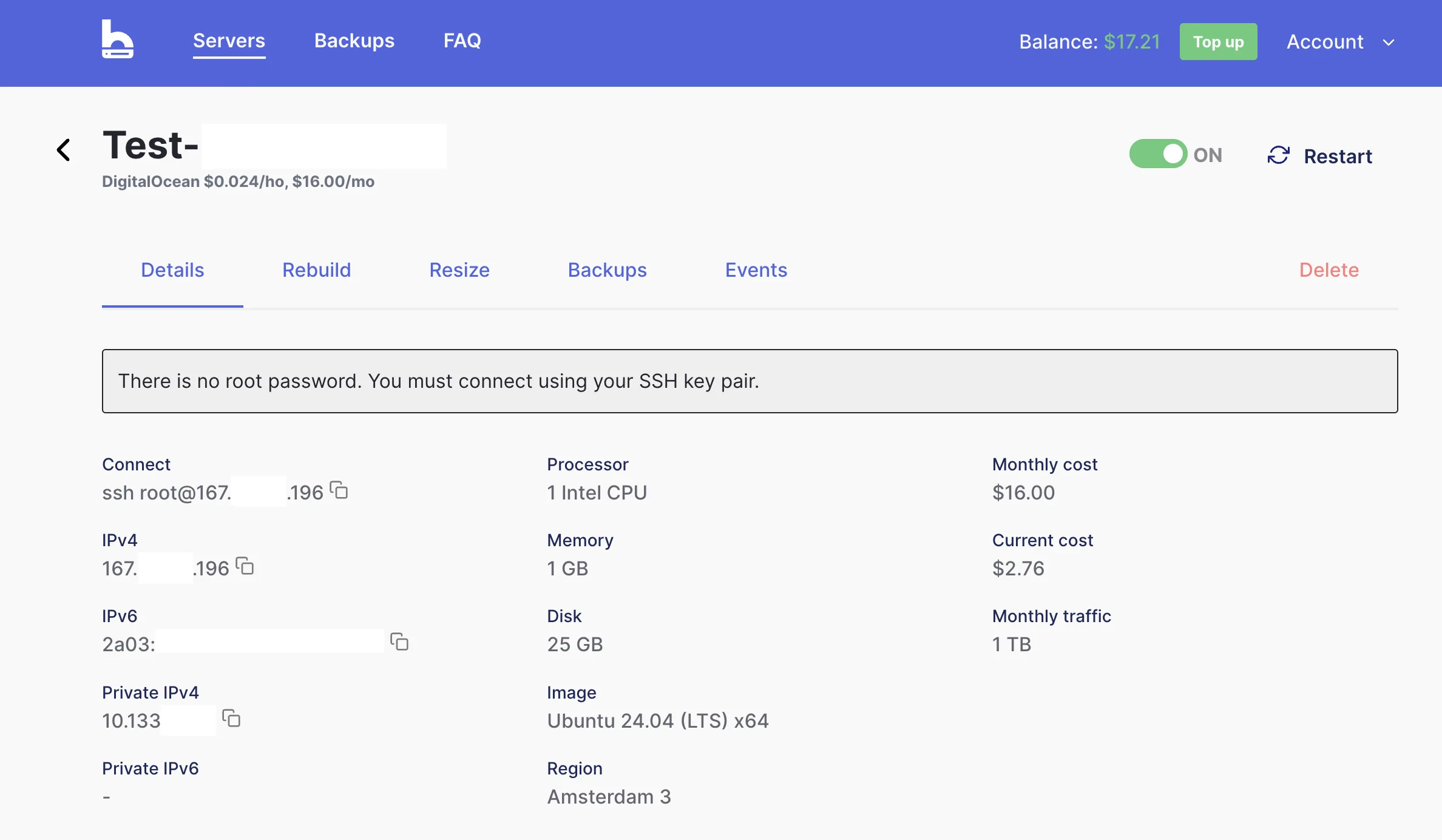
At the top you'll see your server's name, provider, hourly and monthly price, and the power toggle. The tabs below give access to everything else.
Details tab
The default tab. It shows everything you need to connect to and identify your server:
- Connect - the ready-to-use SSH command for your server
- IPv4 / IPv6 - your server's public IP addresses
- Private IPv4 / IPv6 - internal network addresses (within the provider's network)
- Processor, Memory, Disk - the resources your current plan includes
- Image - the OS installed on the server
- Region - the data centre location
- Monthly cost / Current cost / Monthly traffic - billing overview for the current period
Rebuild tab
Wipes the server and installs a fresh OS. Use this if you want to start over with a clean slate or switch to a different operating system.
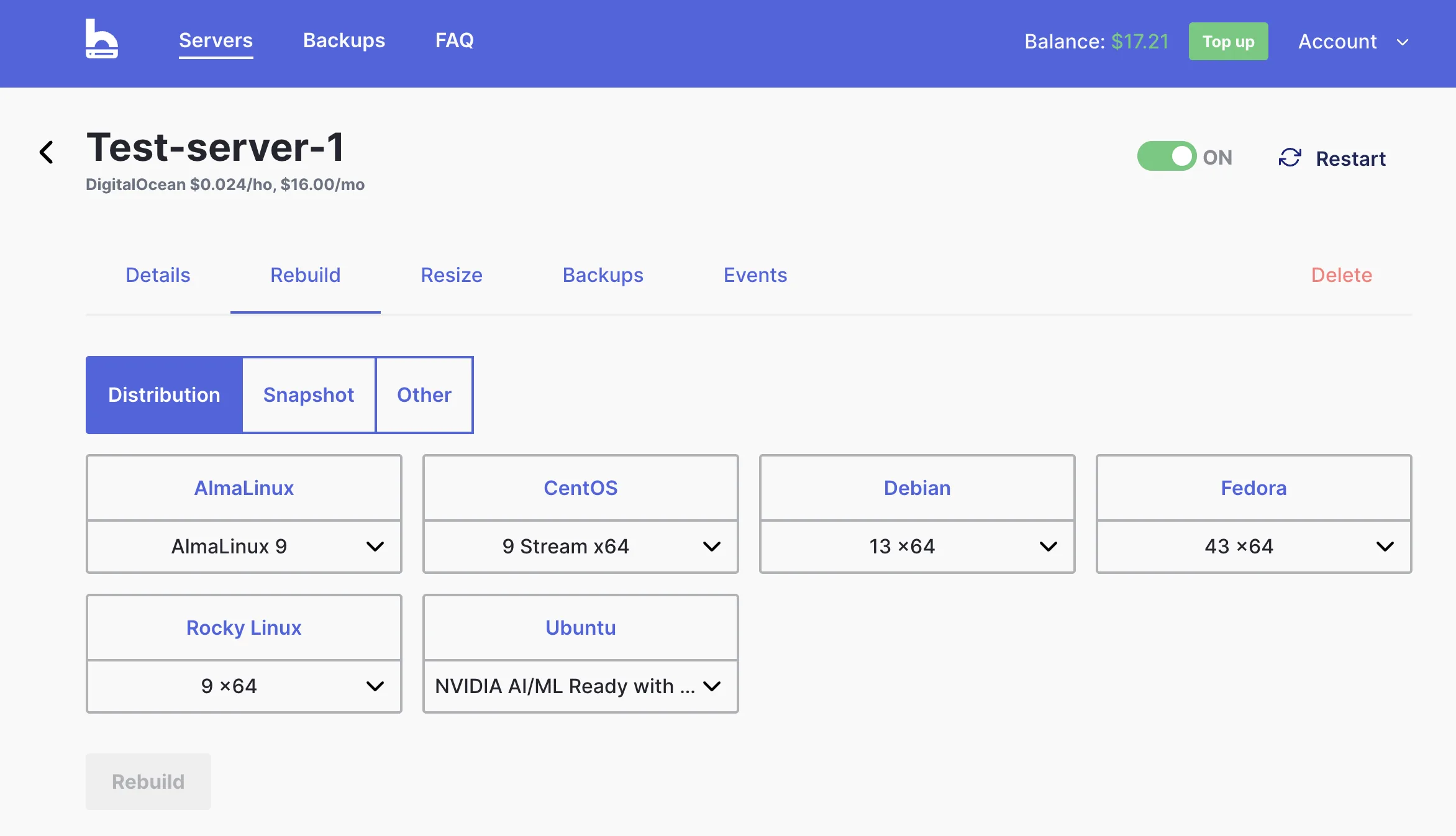
The Distribution sub-tab lets you pick a fresh OS image - AlmaLinux, CentOS, Debian, Fedora, Rocky Linux, or Ubuntu. The Snapshot sub-tab lets you rebuild from one of your own saved snapshots instead.
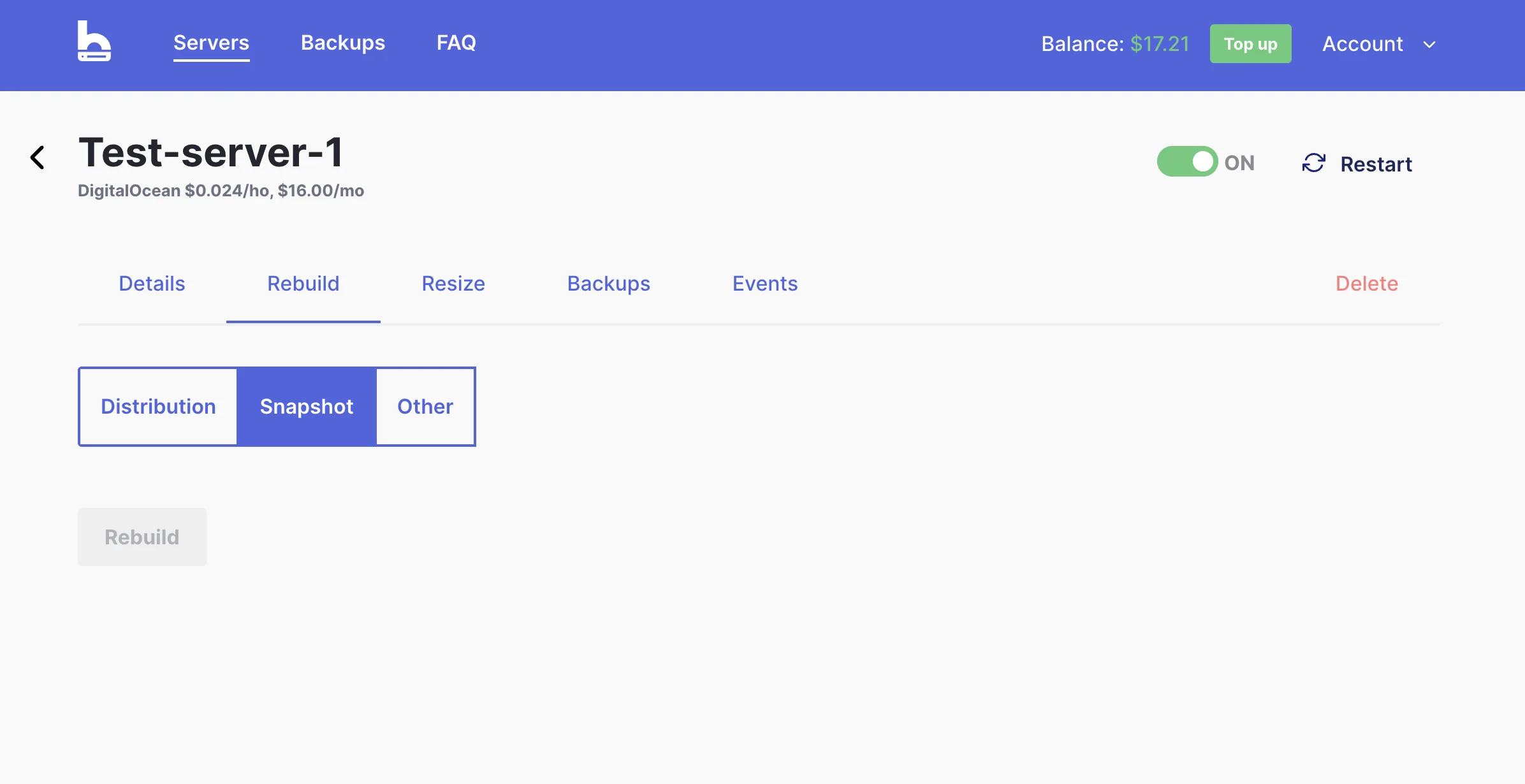
Warning: Rebuilding permanently deletes all data on the server. Take a snapshot first if you need to preserve anything.
Resize tab
Upgrade your server's plan - more CPU, RAM, disk, or traffic. Plans are grouped by type: General Purpose, CPU-Optimized, Memory-Optimized, and Storage-Optimized. Not sure how big to go? See choosing the right plan.
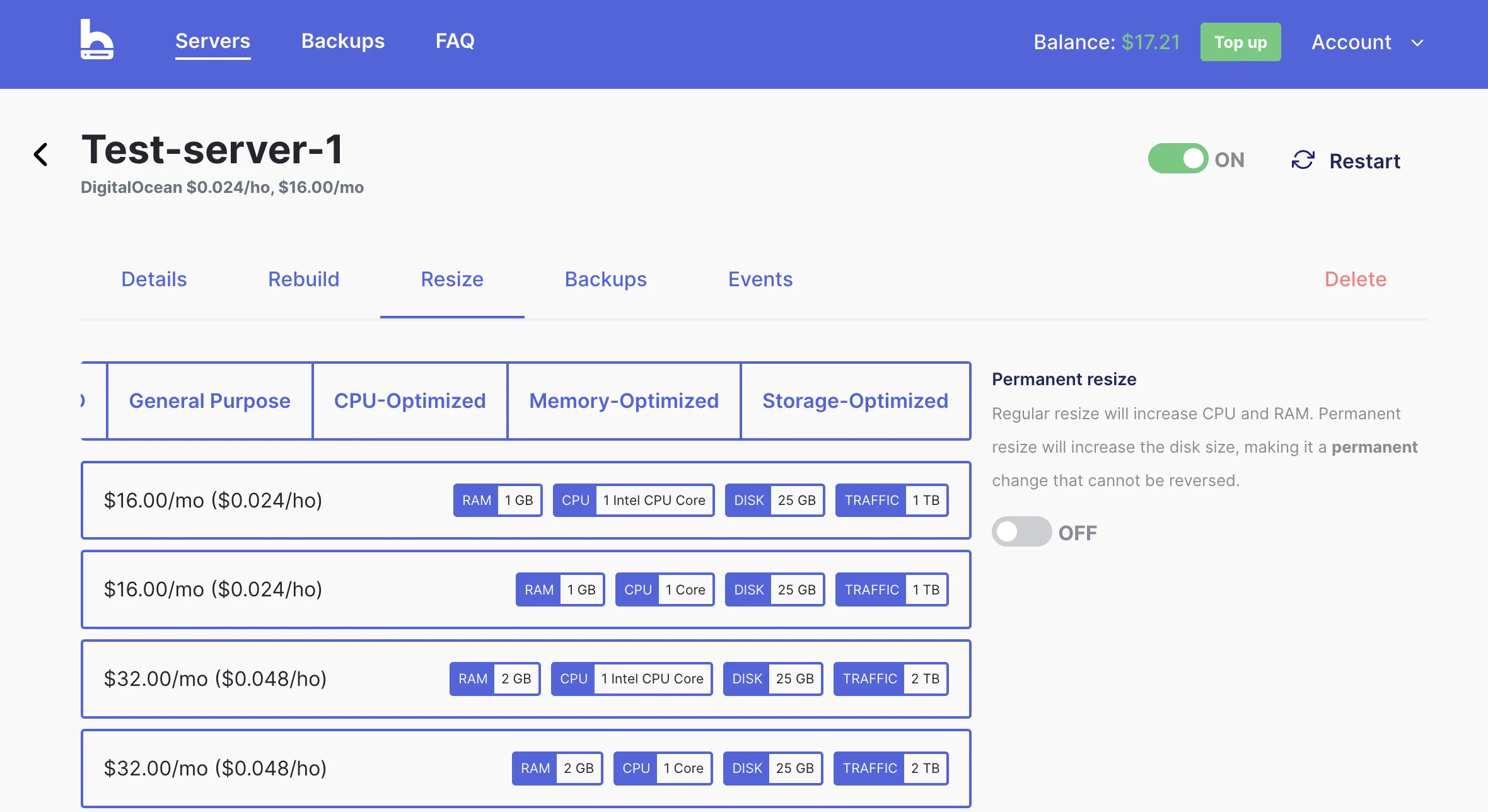
Note the Permanent resize toggle on the right. When off, only CPU and RAM are increased and the resize can be reversed. When on, disk size is also increased - this cannot be undone.
Backups tab
Two options for protecting your data:
- Automatic backups - scheduled backups taken by the provider, charged at 20% of your server price. Toggle them on to enable.
- Snapshots - manual, on-demand copies of your entire disk. Enter a name and click Create snapshot. Snapshots cost $0.06/GB per month. See the full backups guide.
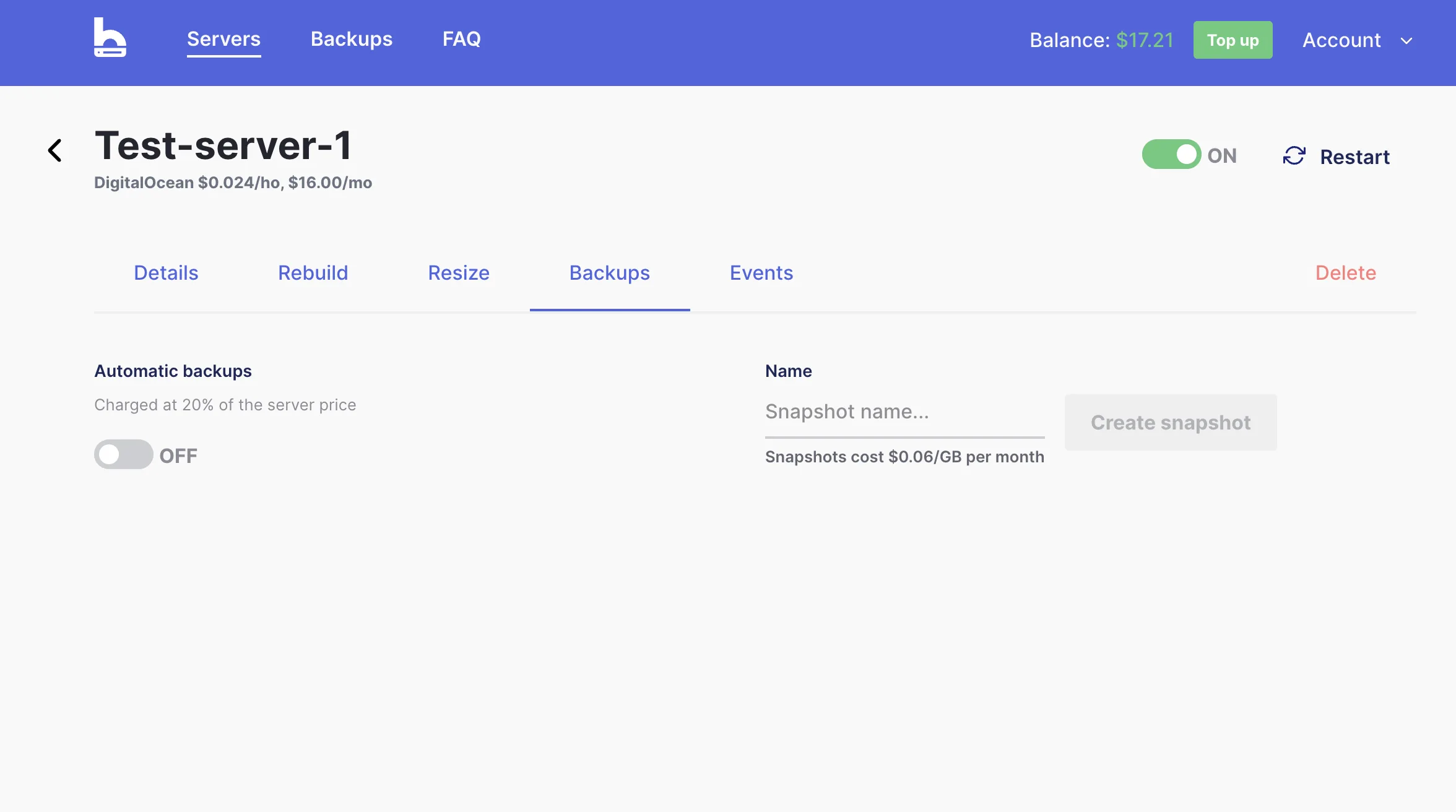
Tip: Take a snapshot before any major change - OS update, new software install, or configuration change. It only takes a moment and gives you a safe rollback point.
Events tab
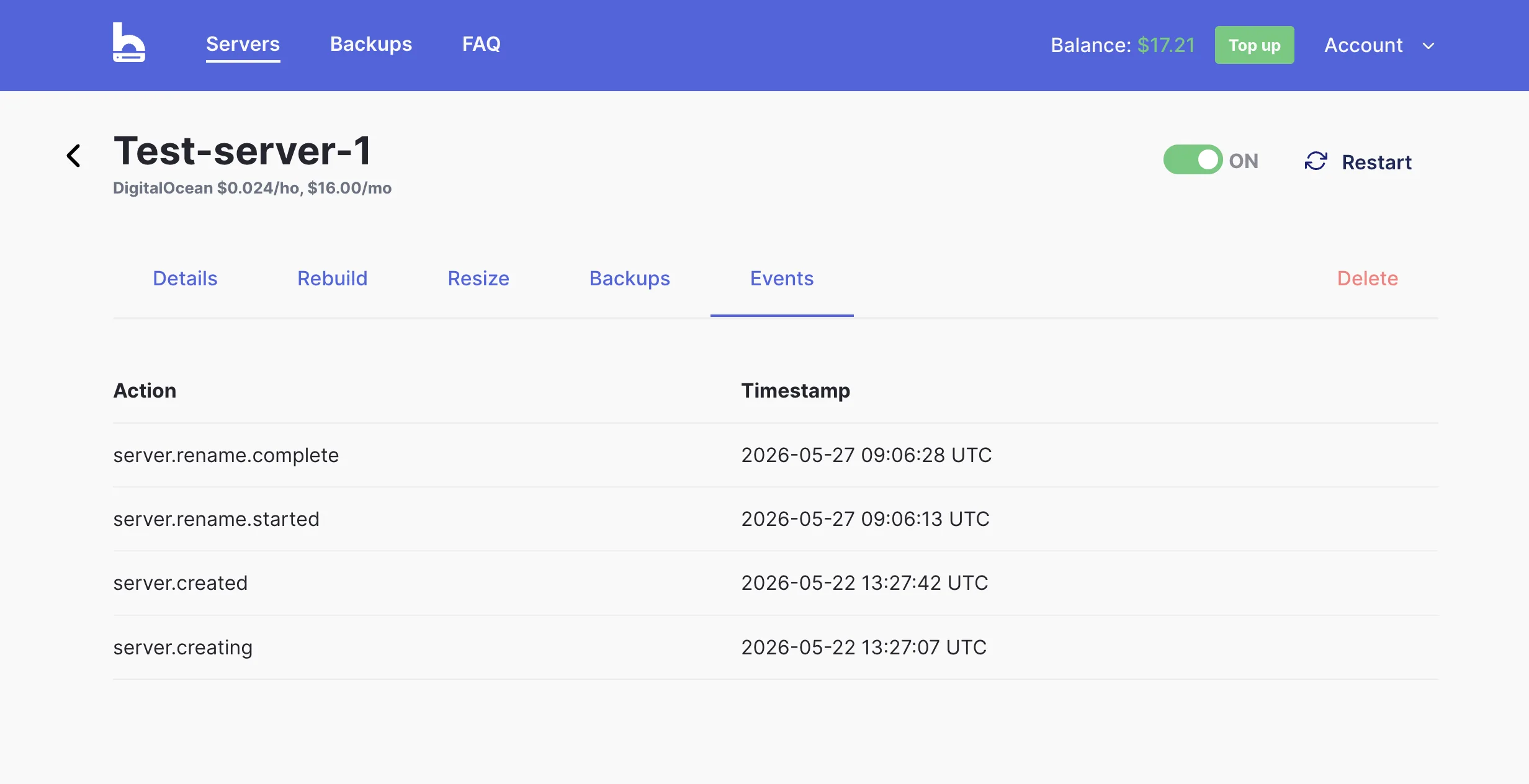
A full log of every action taken on the server - creation, renames, restarts, rebuilds, and more - with UTC timestamps. Useful for troubleshooting or auditing changes.
Stop, Restart & Delete
The power toggle and action buttons are always visible at the top right of the server page, regardless of which tab you're on.
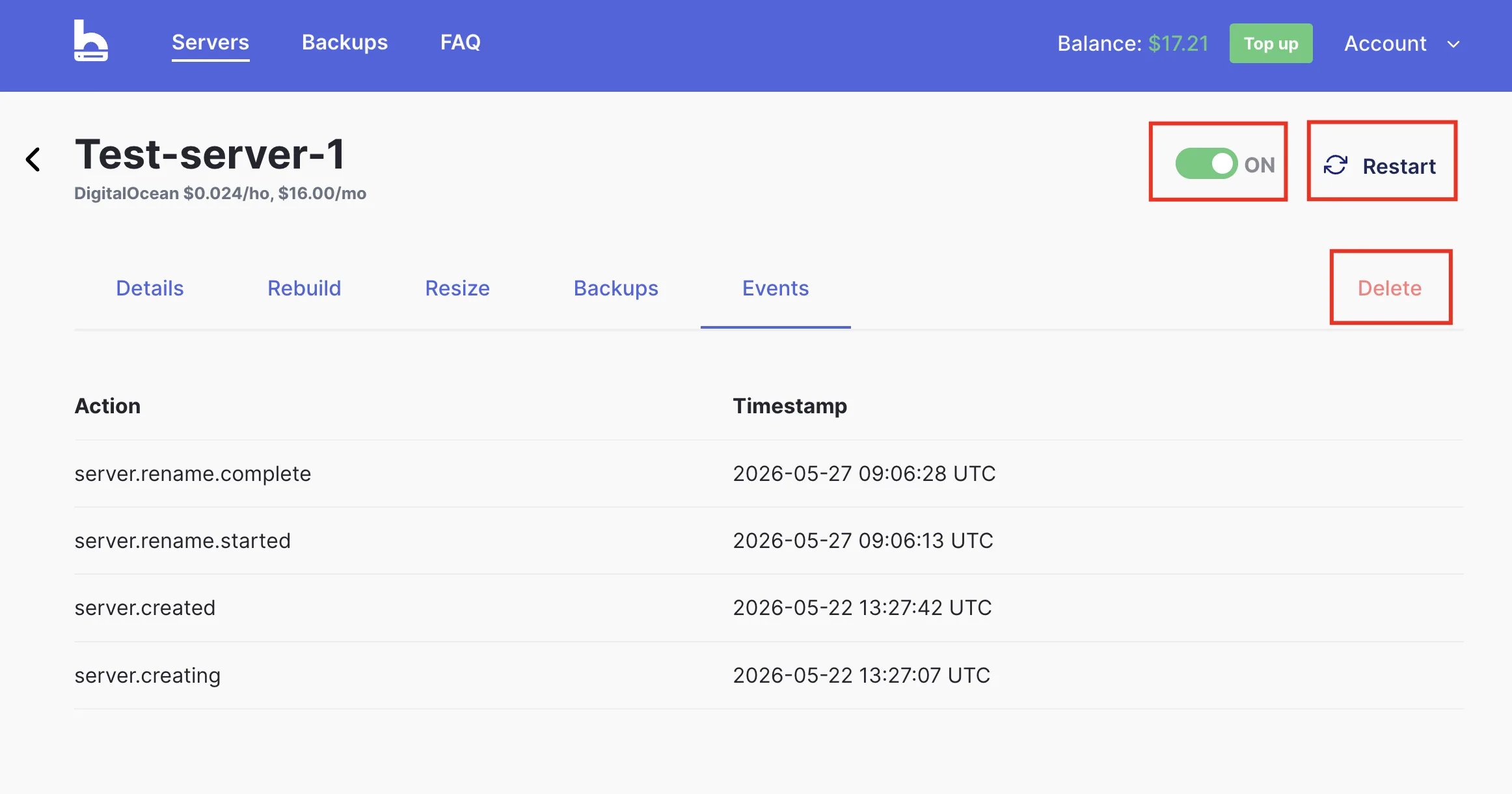
- Toggle (ON/OFF) - turns the server on or off. Stopping a server halts billing for compute time but disk storage continues to be charged.
- Restart - reboots the server. Use this after system updates or if the server becomes unresponsive.
- Delete (in the tab bar, in red) - permanently destroys the server and all its data. This cannot be undone.
Questions? Email us at [email protected] - we reply in under 2 hours, 7 days a week.