bithost uses SSH key authentication by default on all new servers. You need to add your public key to your account before deploying - it gets injected into the server at creation time and cannot be added after the fact without console access. Once your key is added and your server is live, you can connect via SSH.
What are SSH keys?
SSH keys come in pairs: a private key (stays on your machine, never share it) and a public key (safe to share - you give this to bithost). When you connect to a server, the server checks your private key against the stored public key. If they match, you're in - no password needed.
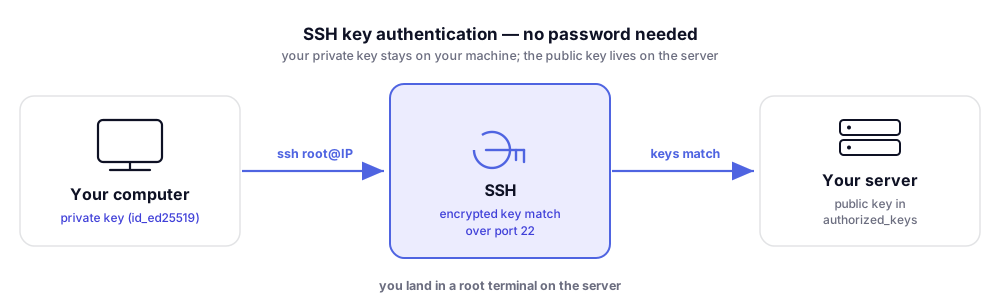
The recommended algorithm today is Ed25519 - it's faster and more secure than the older RSA.
1. Generate a key pair
Open your terminal and run:
ssh-keygen -t ed25519 -C "[email protected]"
You'll be prompted for a file location (press Enter to accept the
default ~/.ssh/id_ed25519) and an optional passphrase. Using a
passphrase adds another layer of security - recommended.
This creates two files:
~/.ssh/id_ed25519- your private key (keep this safe)~/.ssh/id_ed25519.pub- your public key (this is what you share)
View your public key:
cat ~/.ssh/id_ed25519.pub
It will look like: ssh-ed25519 AAAAC3NzaC1lZDI1NTE5AAAAI...
[email protected]
2. Add your public key to bithost
Log in to dashboard.bithost.io,
then go to Account → SSH Keys and click Add SSH Key. Paste your
public key (the full output of cat ~/.ssh/id_ed25519.pub) and give it
a name.
You can add multiple keys - for example, one for your laptop and one for your desktop.
3. Deploy a server and connect
When creating a new server, select your SSH key from the dropdown. Once the server is ready:
ssh root@YOUR_SERVER_IP
If you used a passphrase, you'll be prompted for it. You should be connected as root without entering a server password.
Managing multiple keys
If you have several keys, use ~/.ssh/config to manage them:
Host myserver
  HostName 1.2.3.4
  User root
  IdentityFile ~/.ssh/id_ed25519
Then connect with just: ssh myserver
Windows setup
On Windows, use Windows Terminal or PowerShell - ssh-keygen is built
in since Windows 10. The commands are identical. Your keys are stored in
C:\Users\YourName\.ssh\. Alternatively, use PuTTY with PuTTYgen to
generate keys in PPK format, or convert them to OpenSSH format.
See also: Connect to your server via SSH for a full walkthrough including troubleshooting.
Questions? Email us at [email protected] - we reply in under 2 hours, 7 days a week.